



If you are using an Active Directory environment, you can apply all these changes via GPO by following the steps below:
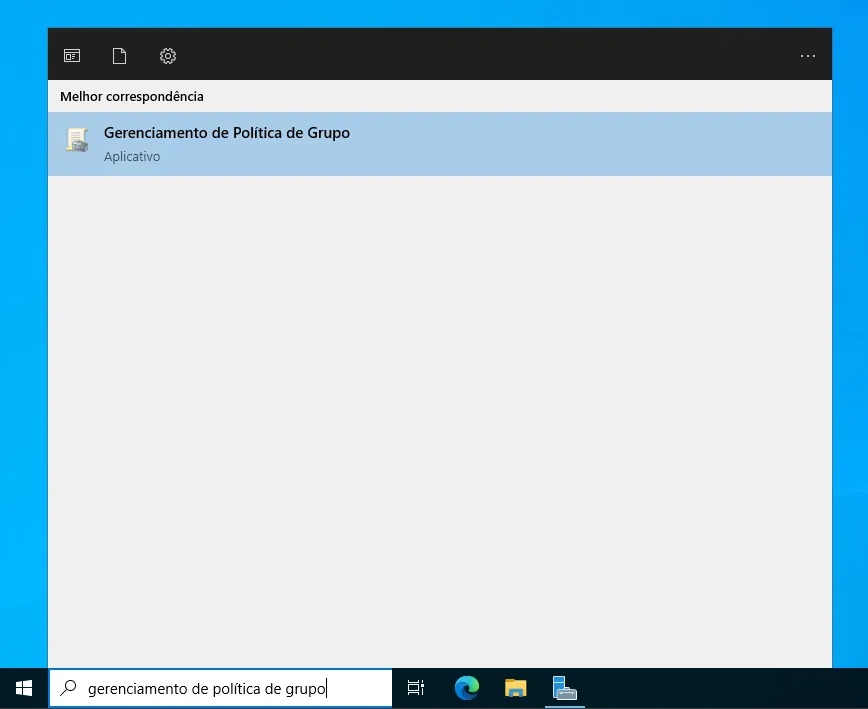
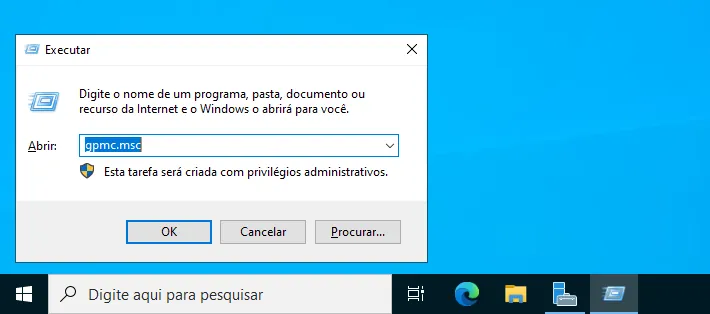
On the domain controller, open the Group Policy Management console through Windows Search or by opening the Run dialog (Win + R), typing gpmc.msc, and pressing Enter.
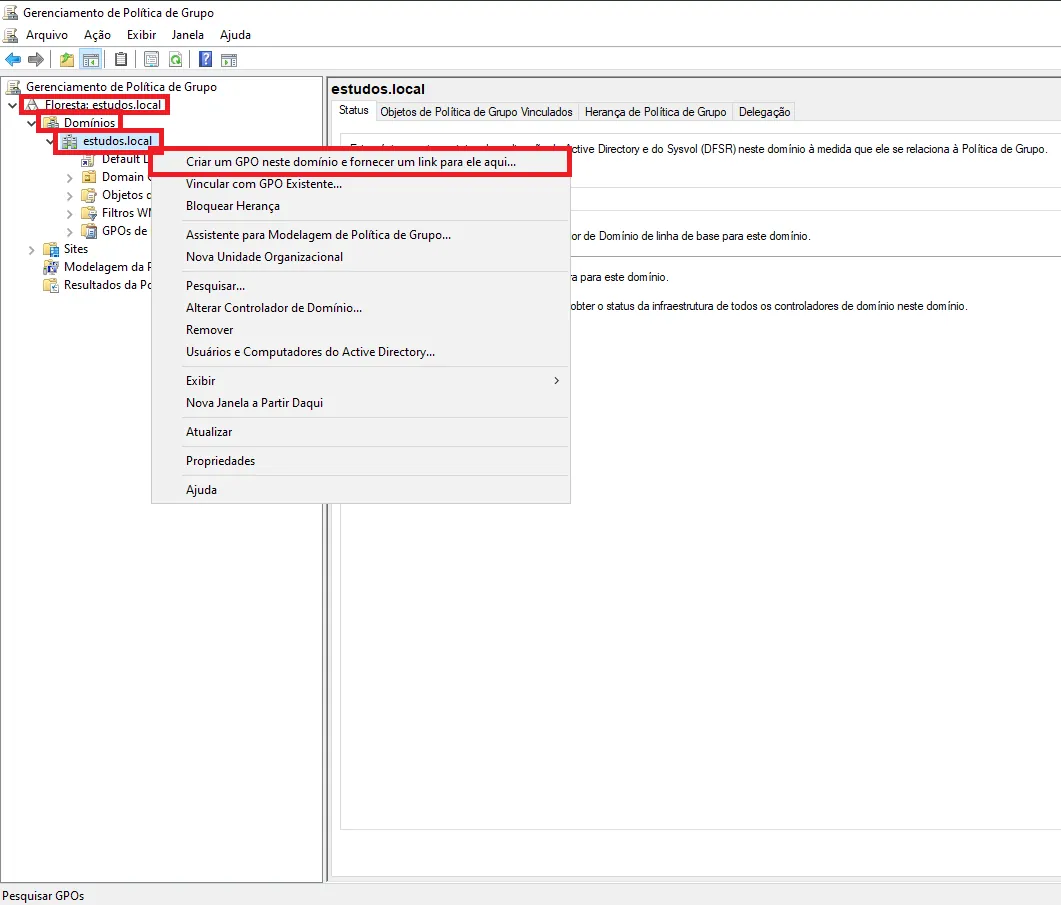
 In the console, right-click the domain where you want to add the GPO, and then click Create a GPO in this domain, and Link it here…
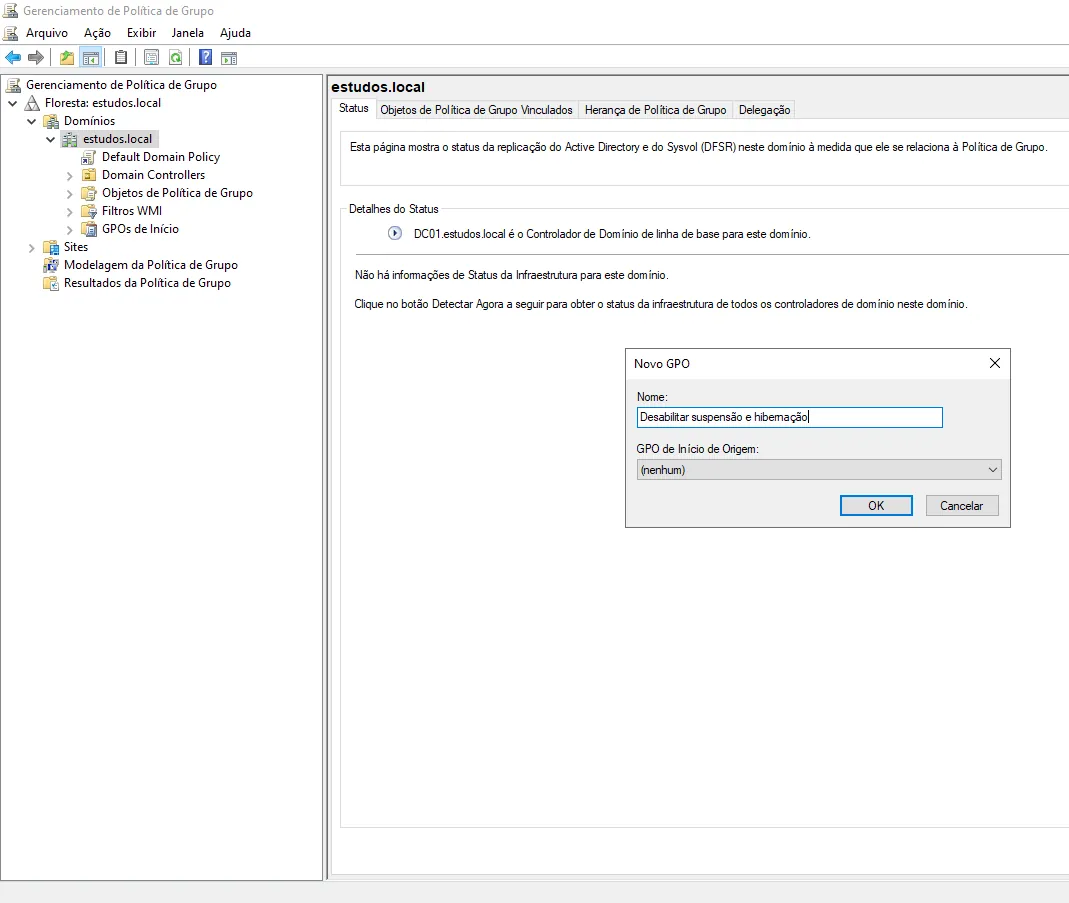
 Assign a name to the GPO (for example, Disable Sleep and Hibernate).
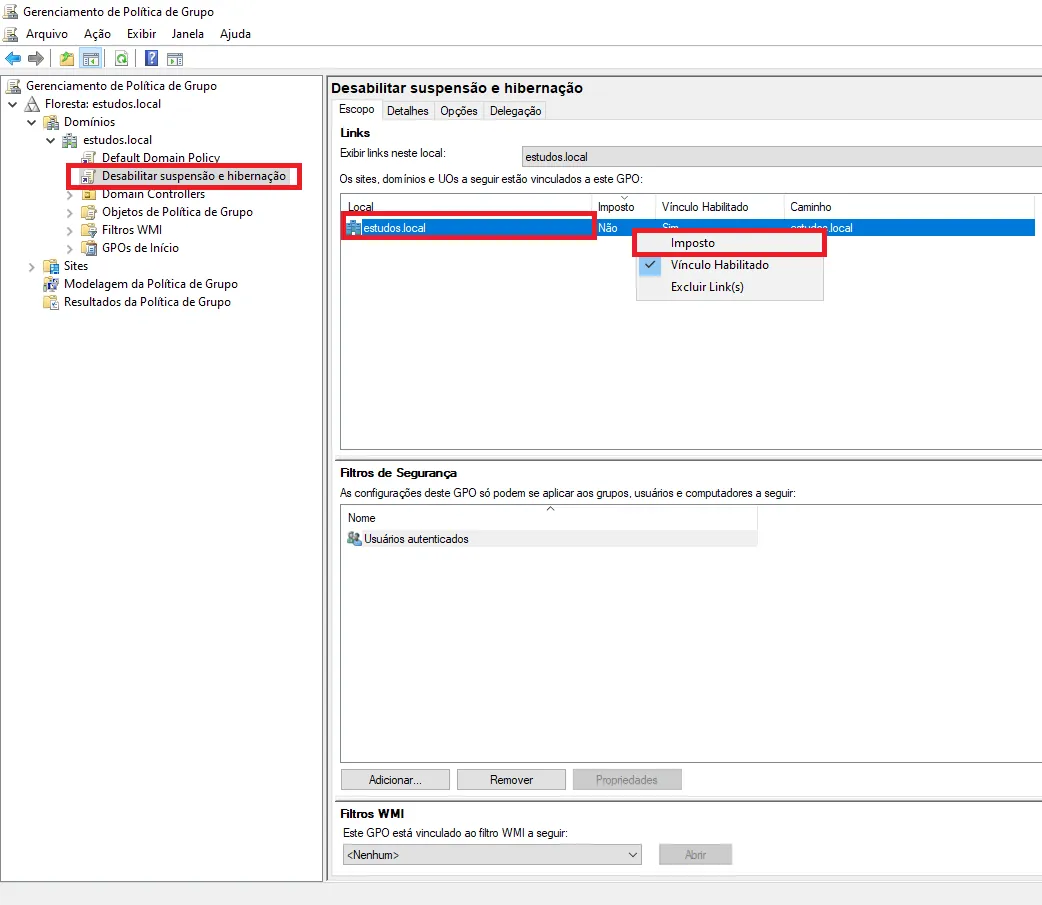
 Click the policy you created, then right-click the domain to which it was linked and enable the Enforced option.
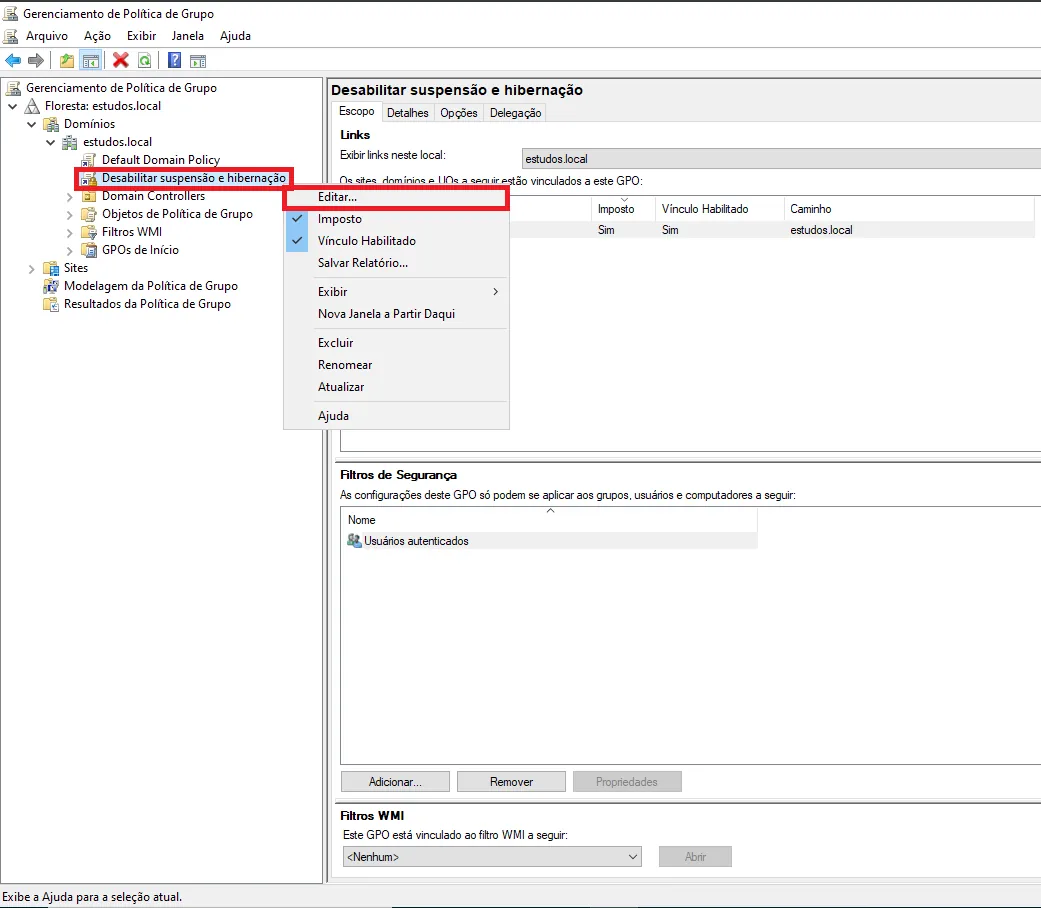
 Right-click the policy you created again, and then click Edit.
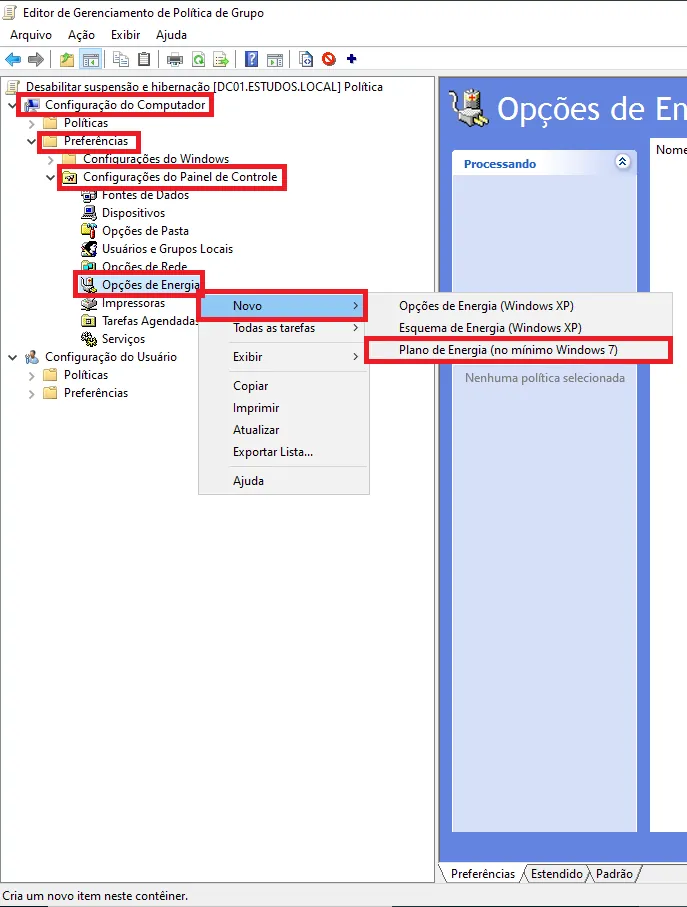
 In the policy editor panel, click Computer Configuration, then Preferences, then Control Panel Settings, then right-click Power Options, click New, and select Power Plan (at least Windows 7).
 In the Power Plan properties window, make sure the selected action is Update and that the selected plan is High Performance.
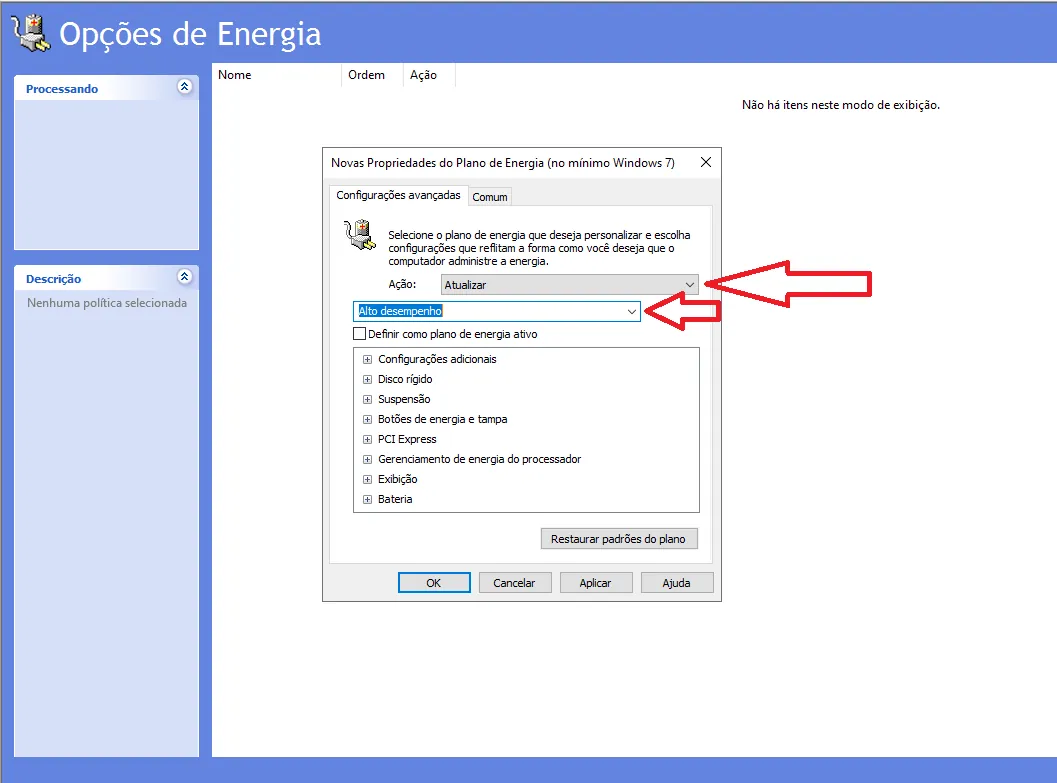 Make the following changes in the power plan settings:
Hard disk > Turn off hard disk after > 0 minutes (On battery and Plugged in)
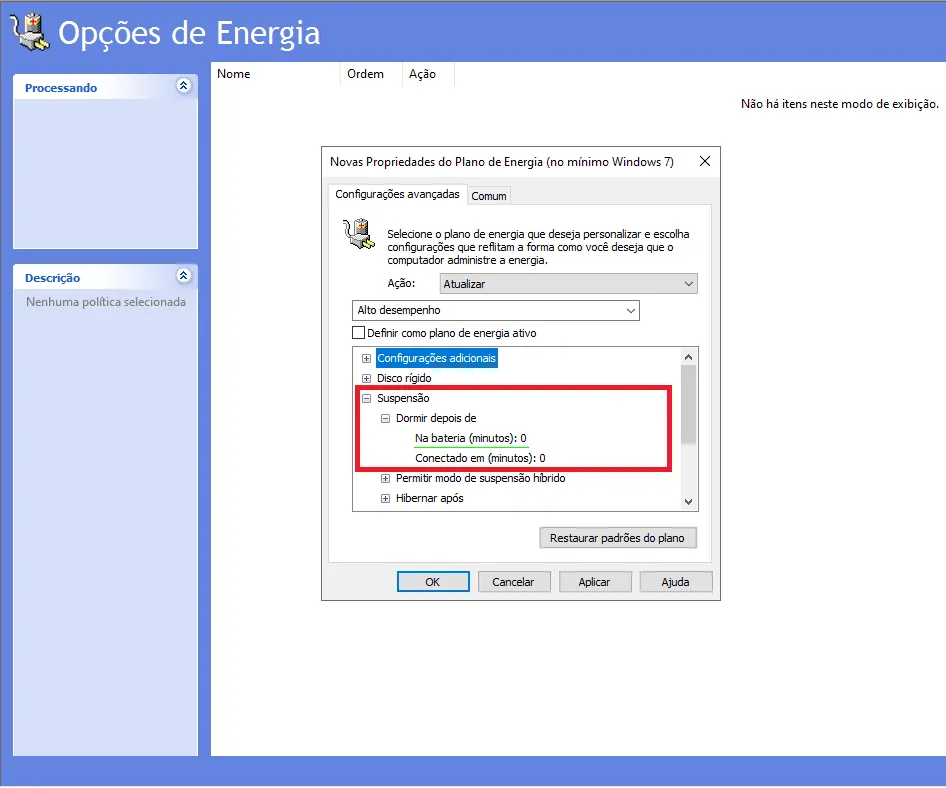
Sleep > Sleep after > 0 minutes (On battery and Plugged in)
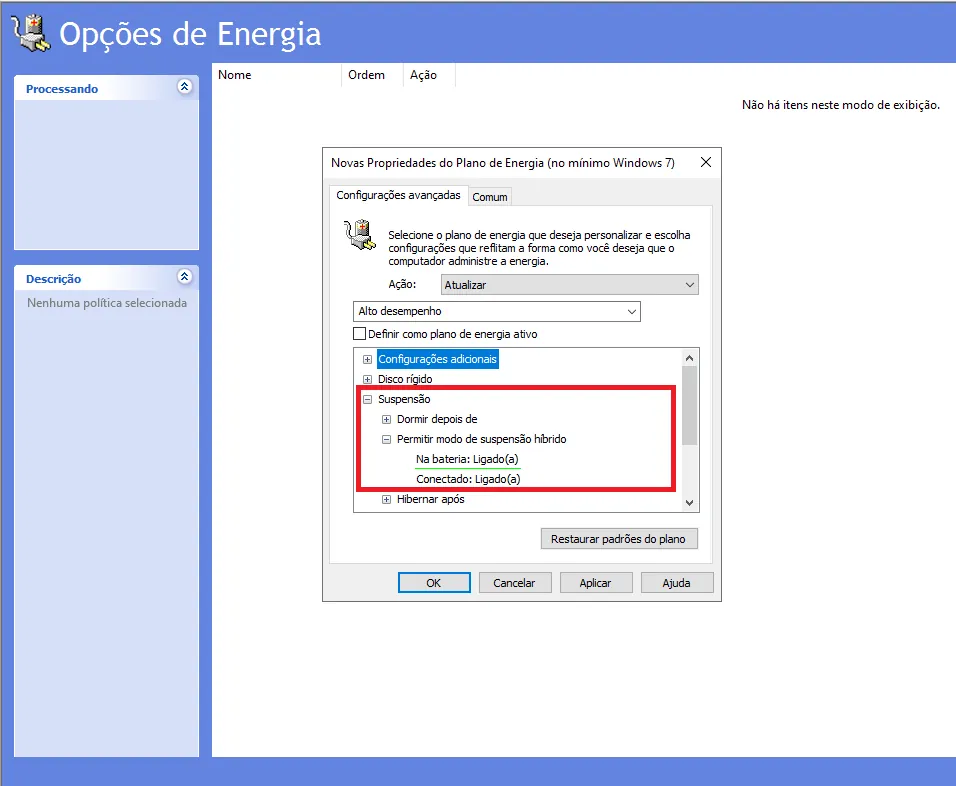
Sleep > Allow hybrid sleep > Off (On battery and Plugged in)
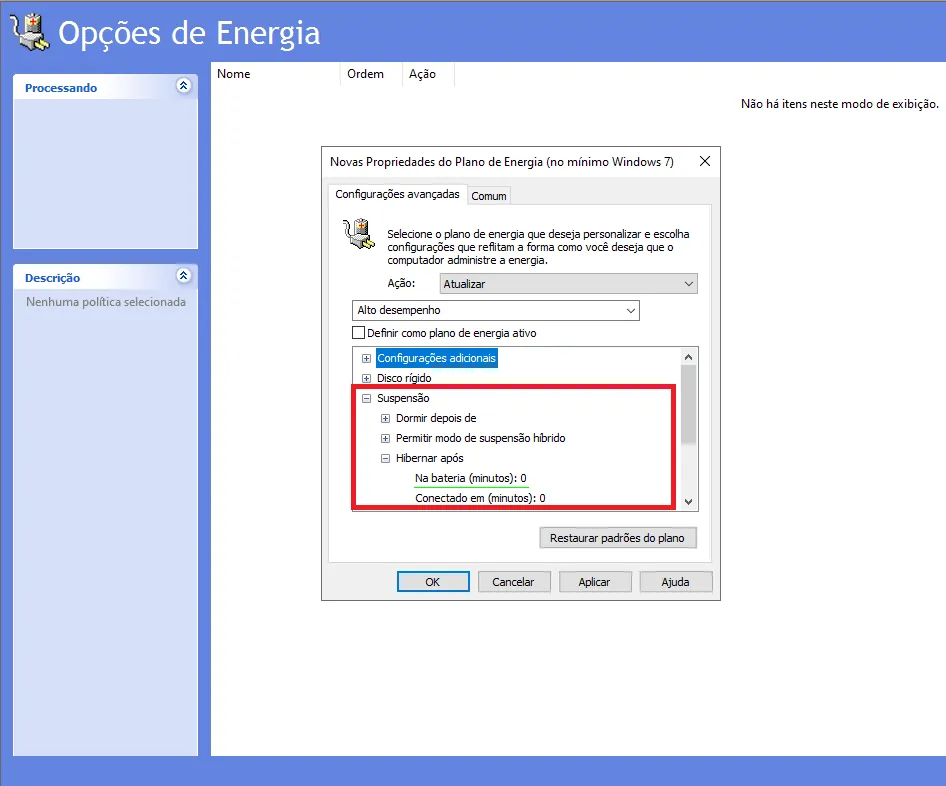
Sleep > Hibernate after > 0 minutes (On battery and Plugged in)
Power buttons and lid > Lid close action > Do nothing (On battery and Plugged in)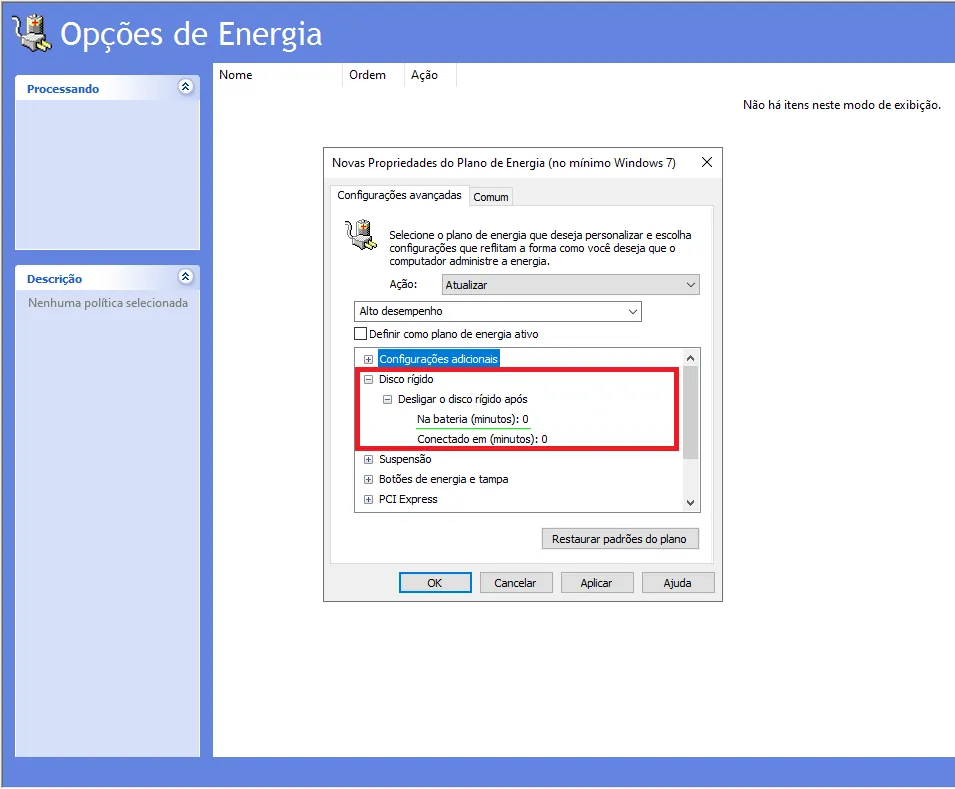
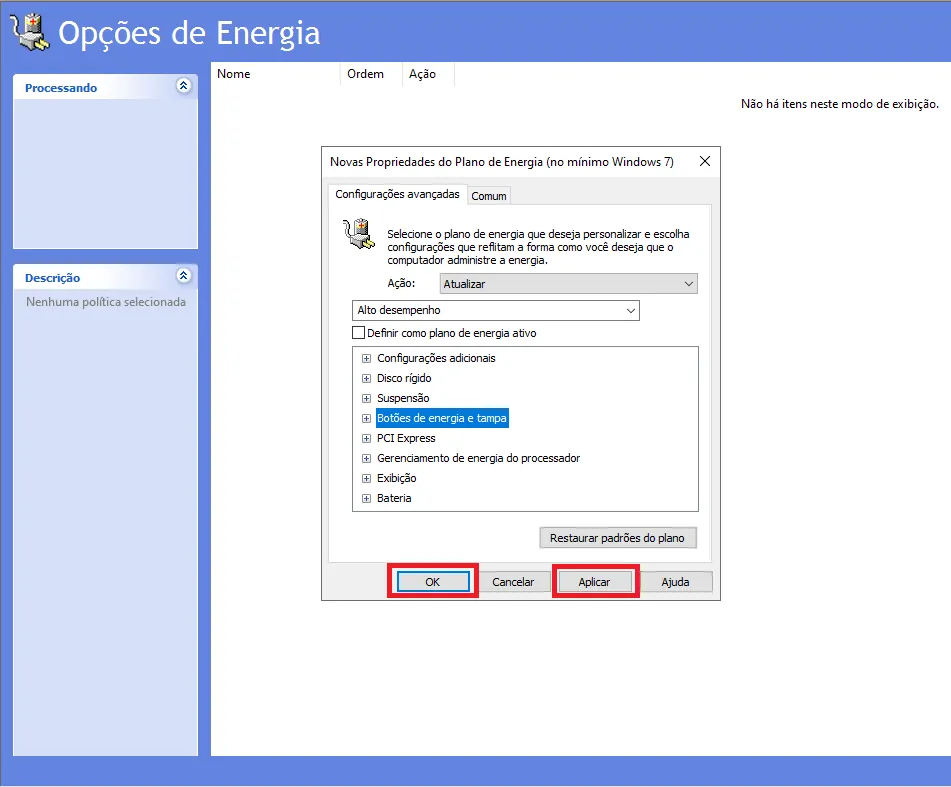
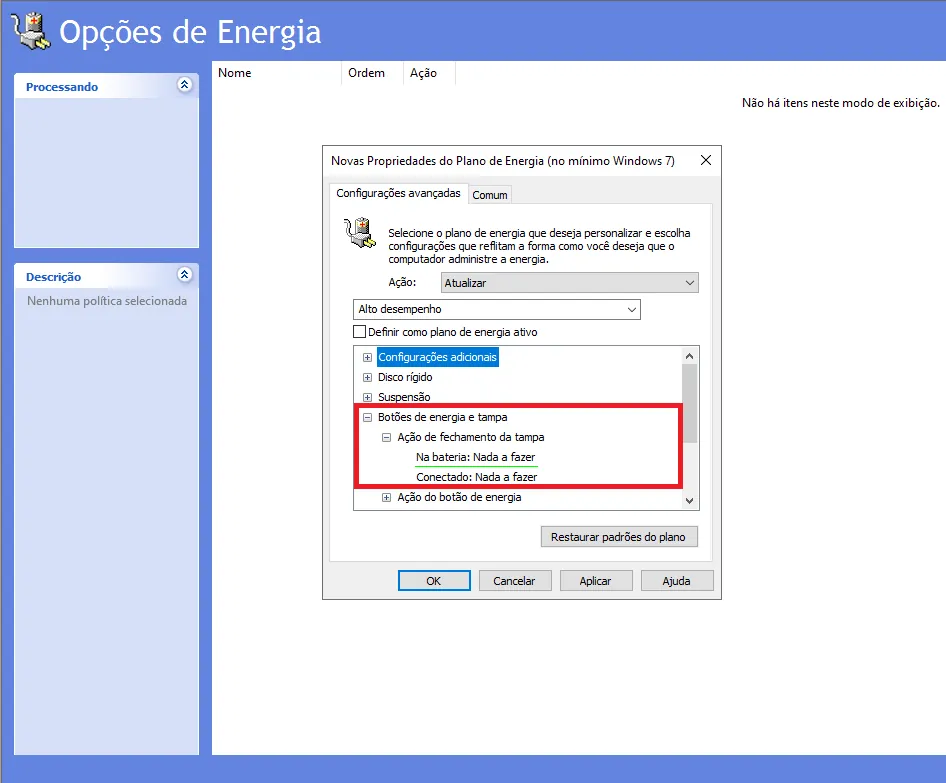 After making the changes, click Apply and then OK.
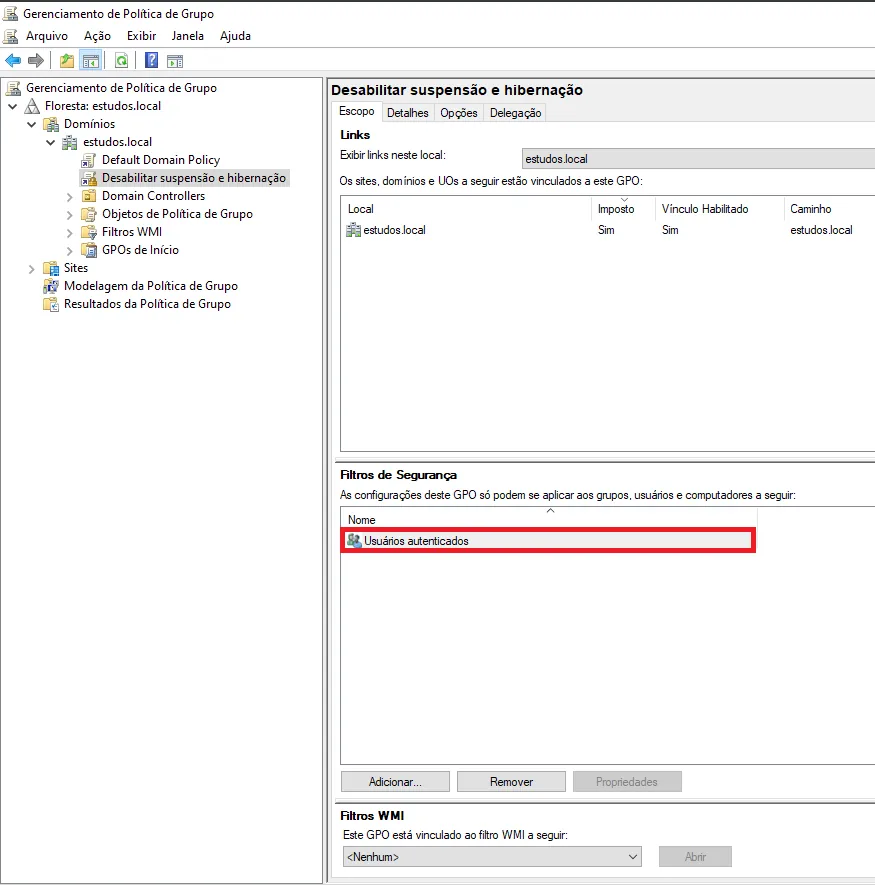
 This way, the new power plan will be enforced on the computers configured to receive the GPO. Back in the Group Policy Management console, confirm that it is set to apply to all Authenticated Users. If necessary, modify the computers/users that should receive the policy.
Great! Thanks for your feedback.
Tell our team what was missing: contact support on WhatsApp.
