



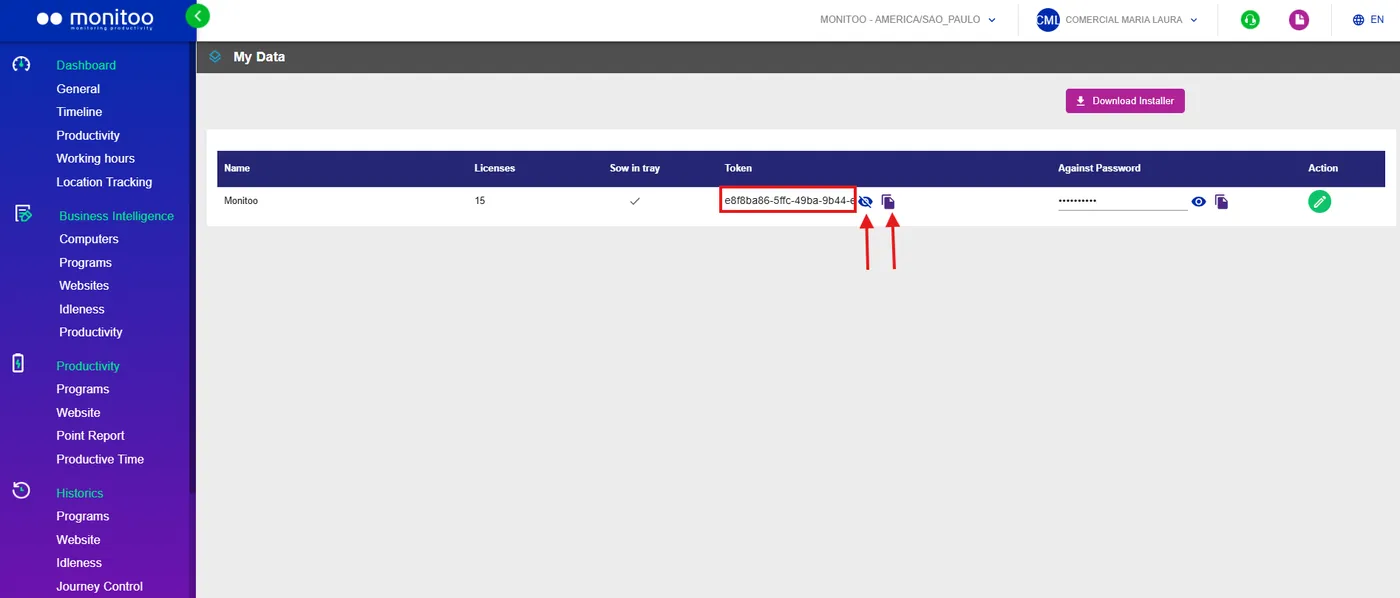
To perform a manual installation on a machine, you’ll need your company’s token so that the platform can register it correctly. The token can also be found in the My Data section.
Run the installer downloaded in the first section. Simply click Next through all the steps, then click Install (don’t forget to accept the software’s privacy policy).

Note: The installation requires administrative rights. Therefore, to perform this process, you must log in to the computer with a Local Administrator account or enter administrator credentials when prompted during the installation process.
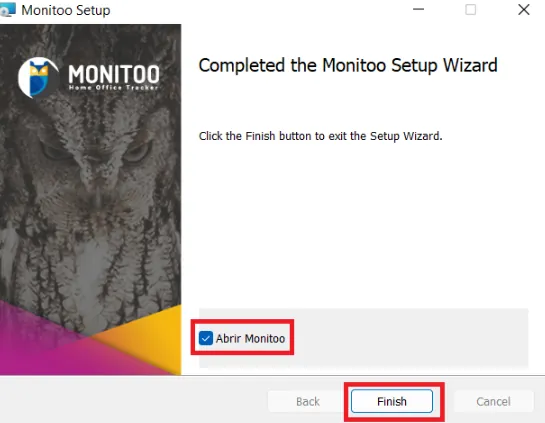
After the installation is complete, the following window will open. Leave the option Open Monitoo checked and click Finish.
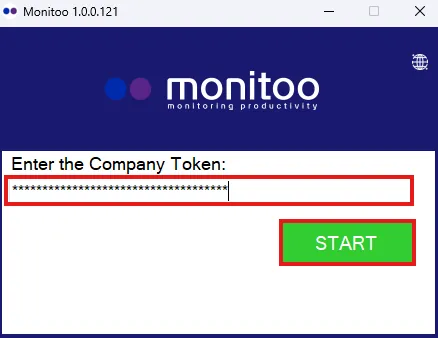
Another window will open, this time asking for the company’s token. Paste the token obtained from the web platform and click START.
After that, the monitoring service will start, and you’ll be able to see the computer and its records through the dashboard.
See how:
Great! Thanks for your feedback.
Tell our team what was missing: contact support on WhatsApp.
