



If your company has an Active Directory environment, you can use Group Policy to install the software on all computers. To do this, we provide a PowerShell script that should be run in the system context during machine startup. The installer is downloaded automatically according to the latest version, so it’s not necessary to provide the installer to the computers—just the script itself, as shown below.
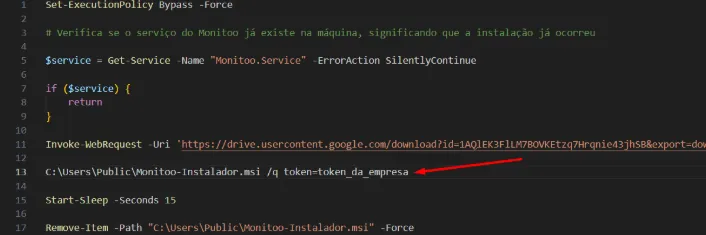
Download the script (you can find it at the bottom of this section) before starting and modify it by adding your company’s token on line 13 (you can find the token on the My Data page of the web platform).
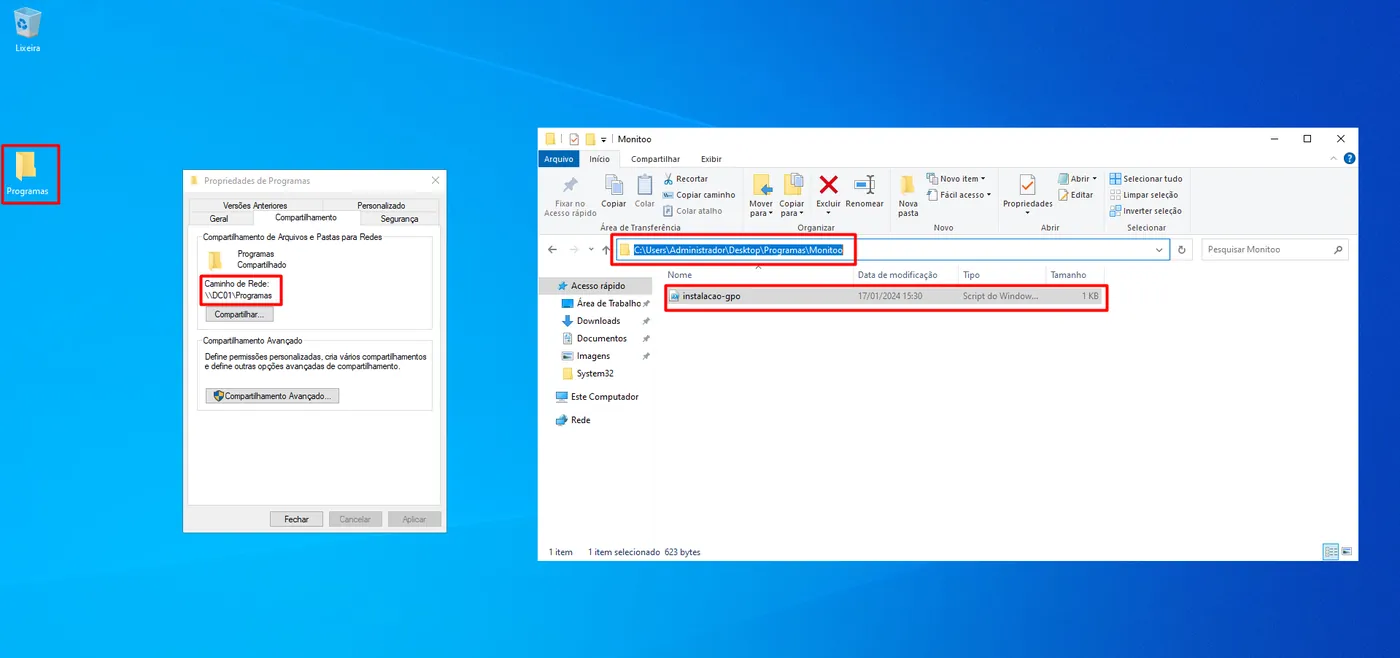
The first step is to make the script available in a shared folder so that all computers in the organization can access it. In the example below, we created a shared folder called Programas, and inside it, a subfolder named Monitoo, where the file instalacao-gpo.ps1 will be stored.
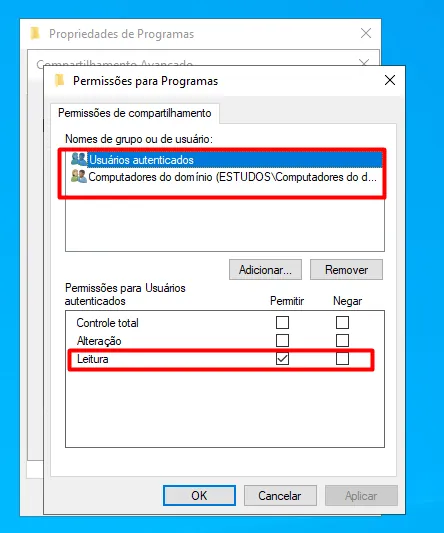
 Attention to the sharing permissions of the root folder and the NTFS permissions of the script file. For the sharing permissions of the root folder (in this example, Programs), it is recommended to remove the Everyone entity from the list and add Authenticated Users and Domain Computers with Read access.
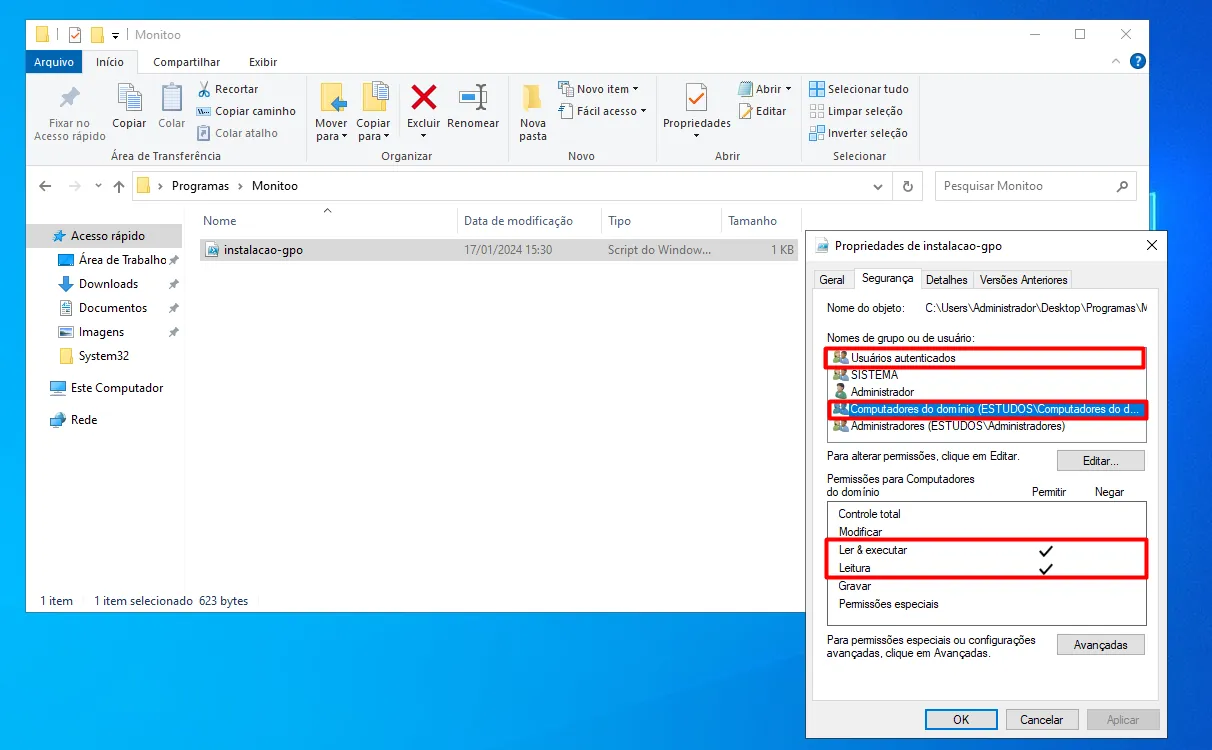
 For the NTFS permissions of the instalacao-gpo.ps1 file, add the same two entities and grant them Read and Execute permissions.
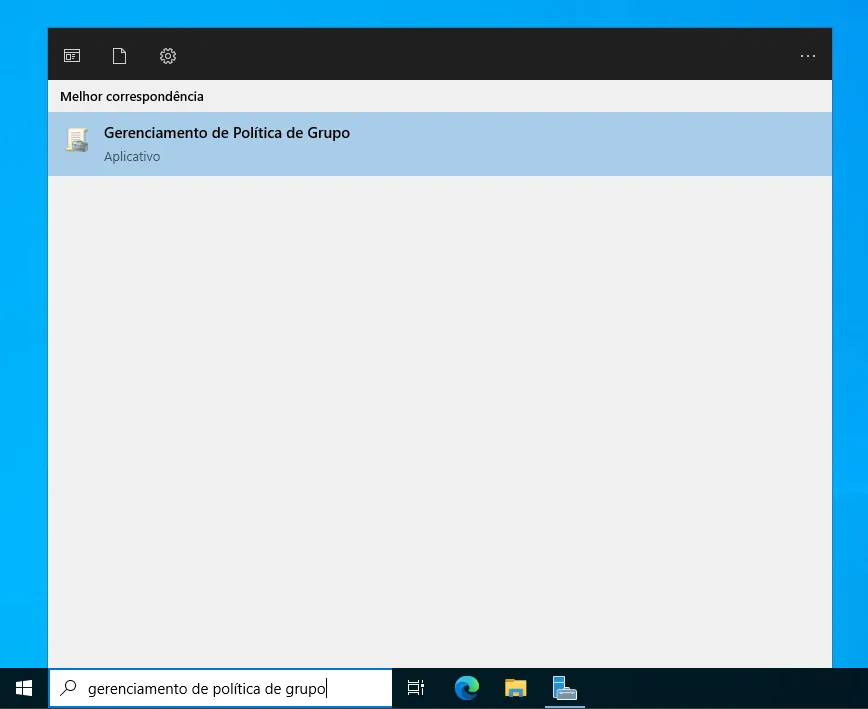
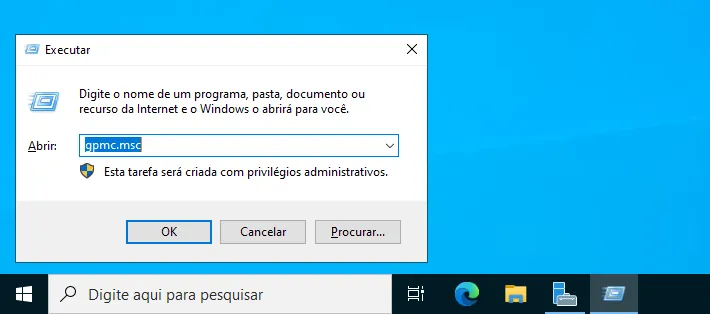
 On the domain controller, open the Group Policy Management console through Windows Search or by opening the Run dialog (Win + R), typing gpmc.msc, and pressing Enter.
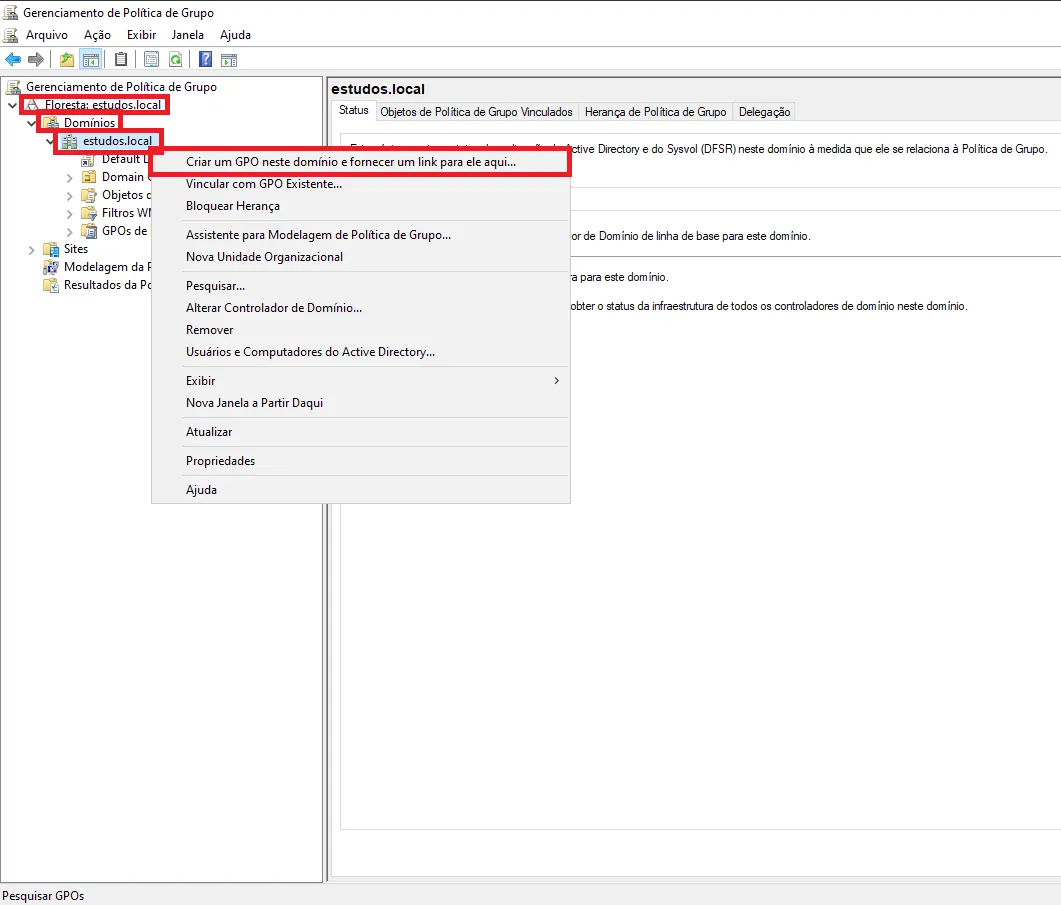
 In the console, right-click the domain where you want to add the GPO, and then click Create a GPO in this domain, and Link it here…
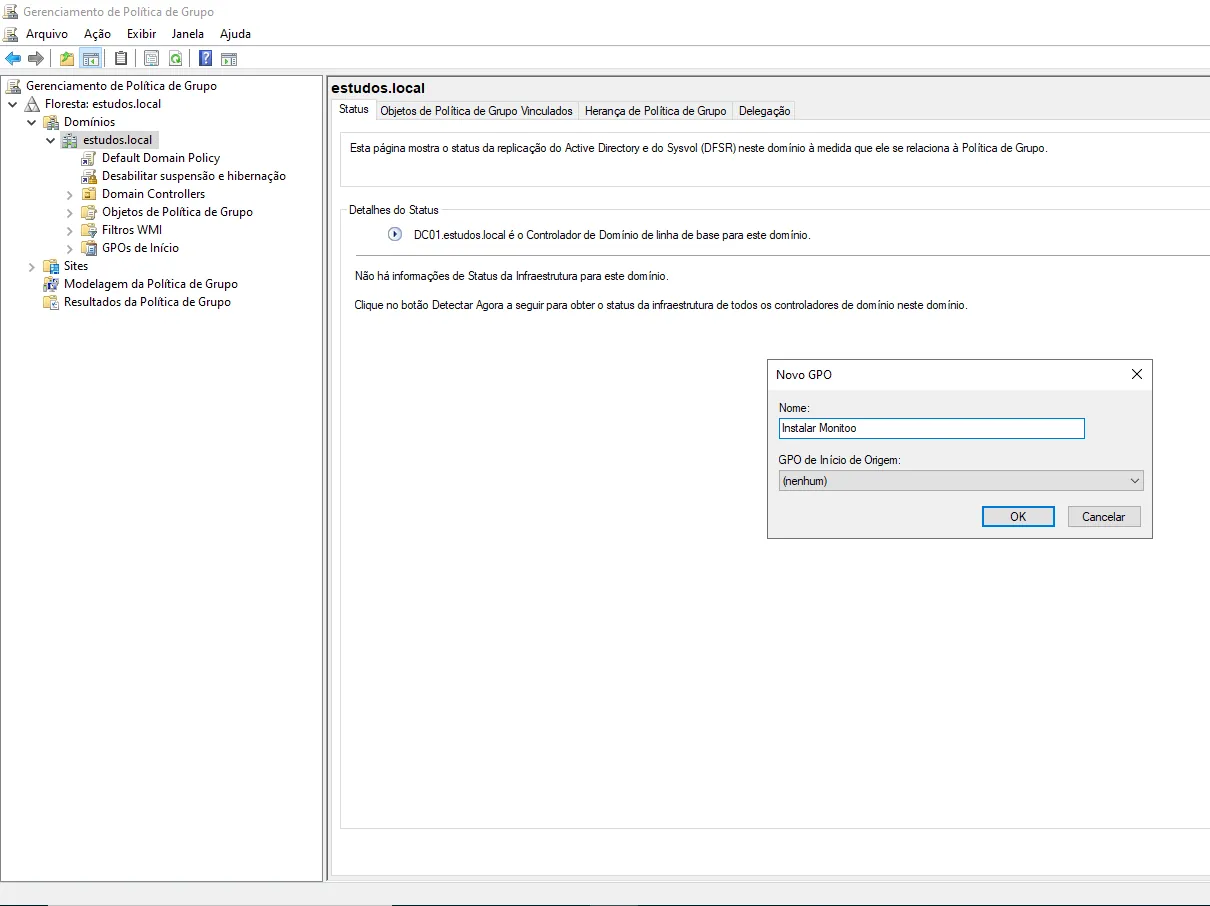
 Assign a name to the GPO (for example, Install Monitoo).
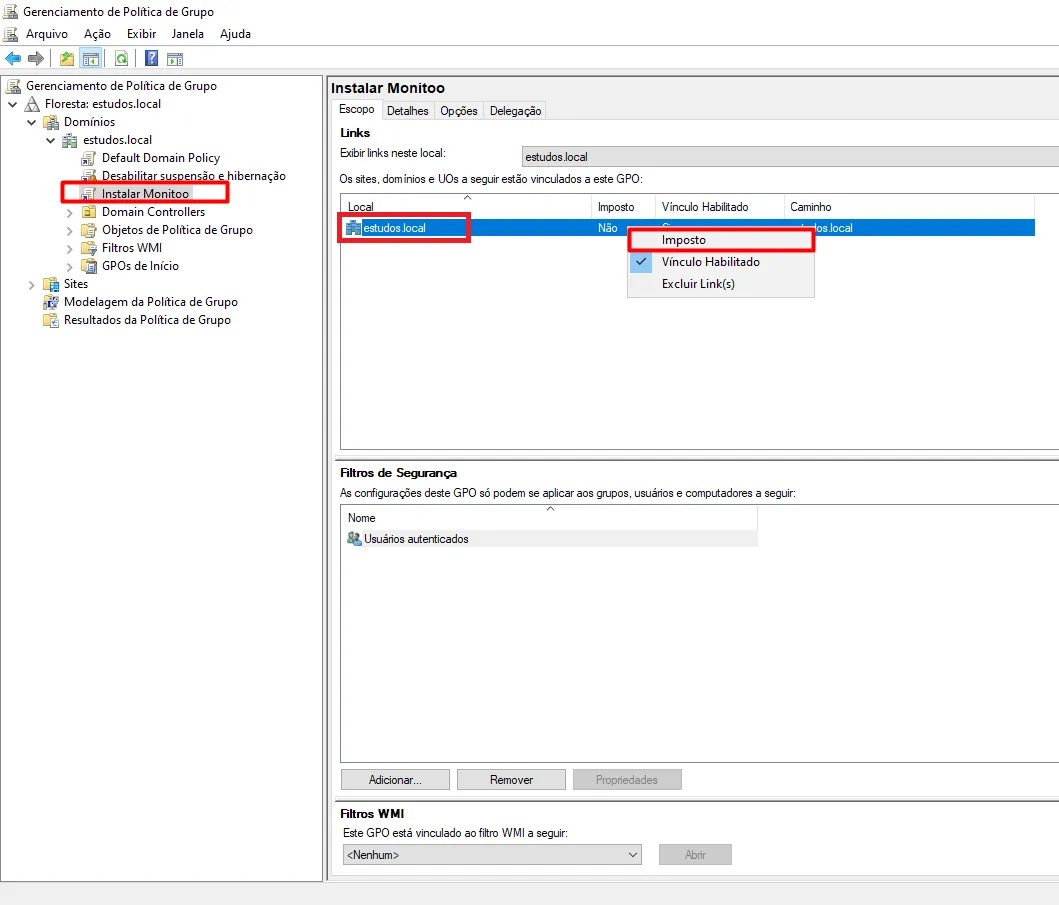
 Click the policy you created, then right-click the domain to which it was linked and enable the Enforced option.
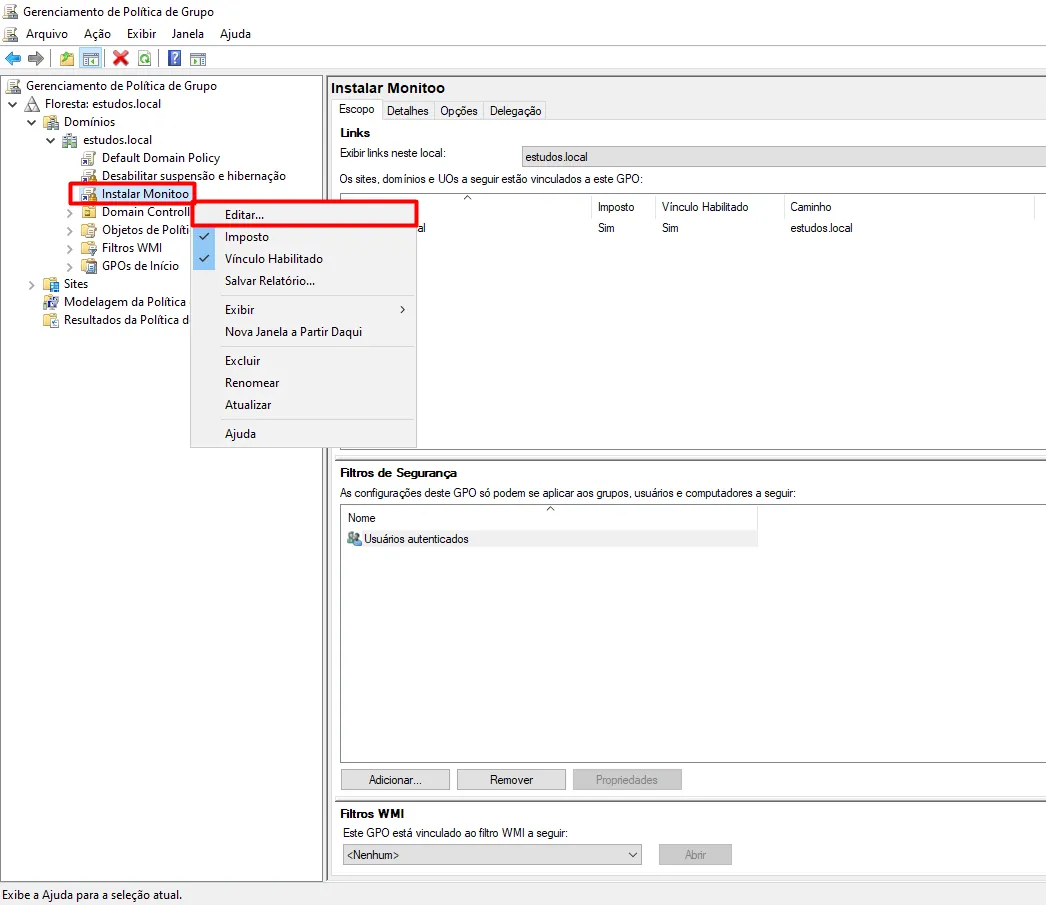
 Right-click the policy you created again, and then click Edit.
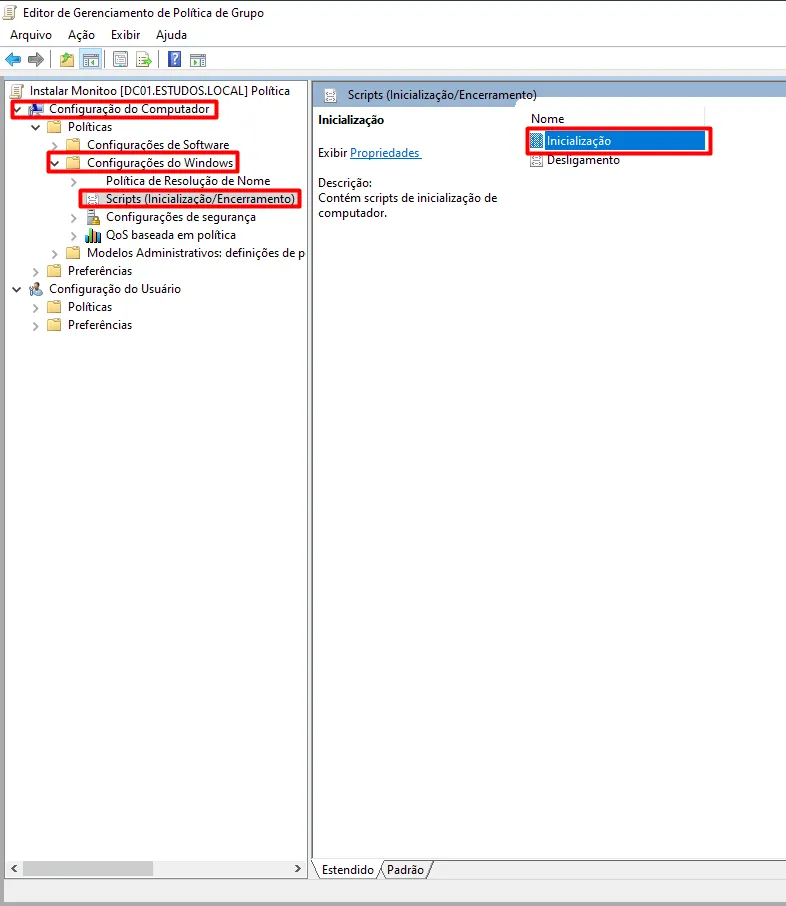
 In the policy editor panel, click Computer Configuration, then Policies, then Windows Settings, and then click Scripts (Startup/Shutdown). After that, double-click Startup.
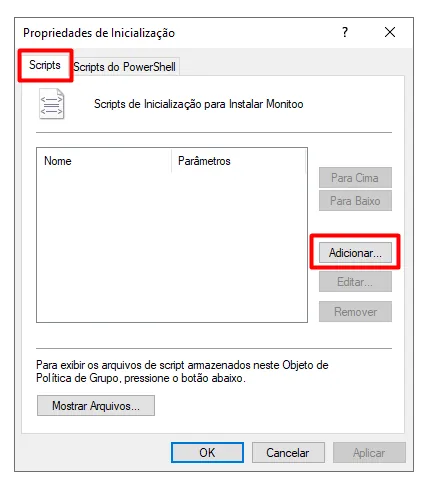
 In the Startup Properties window, click the Scripts tab and then click Add...
 In Script Name, enter:
%windir%\System32\WindowsPowerShell\v1.0\powershell.exe
and in Script Parameters, enter:
`-Noninteractive -ExecutionPolicy Bypass -Noprofile -file "\\path\to\shared\folder\instalacao-gpo.ps1`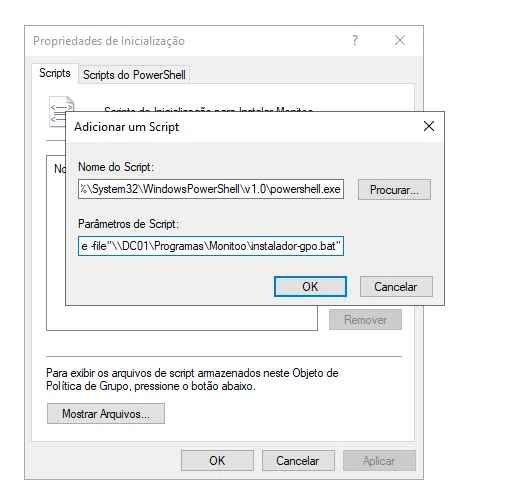 Click OK and apply the changes.
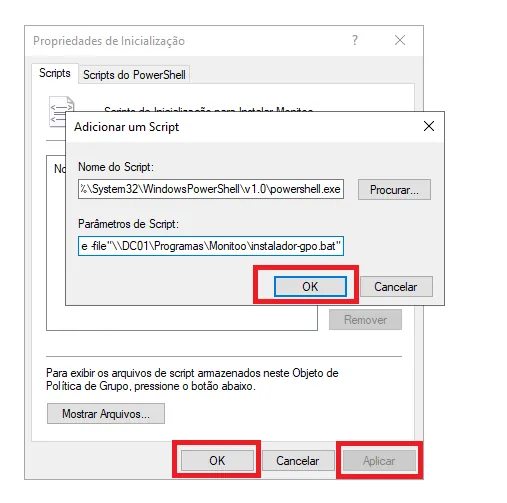 In this way, the script execution will be enforced at startup on the computers configured to receive the GPO. The script includes validation, so duplicate installations should not occur.
Back in the Group Policy Management console, confirm that it is configured to apply to all Authenticated Users and Domain Computers. If necessary, modify the computers/users that should receive the policy.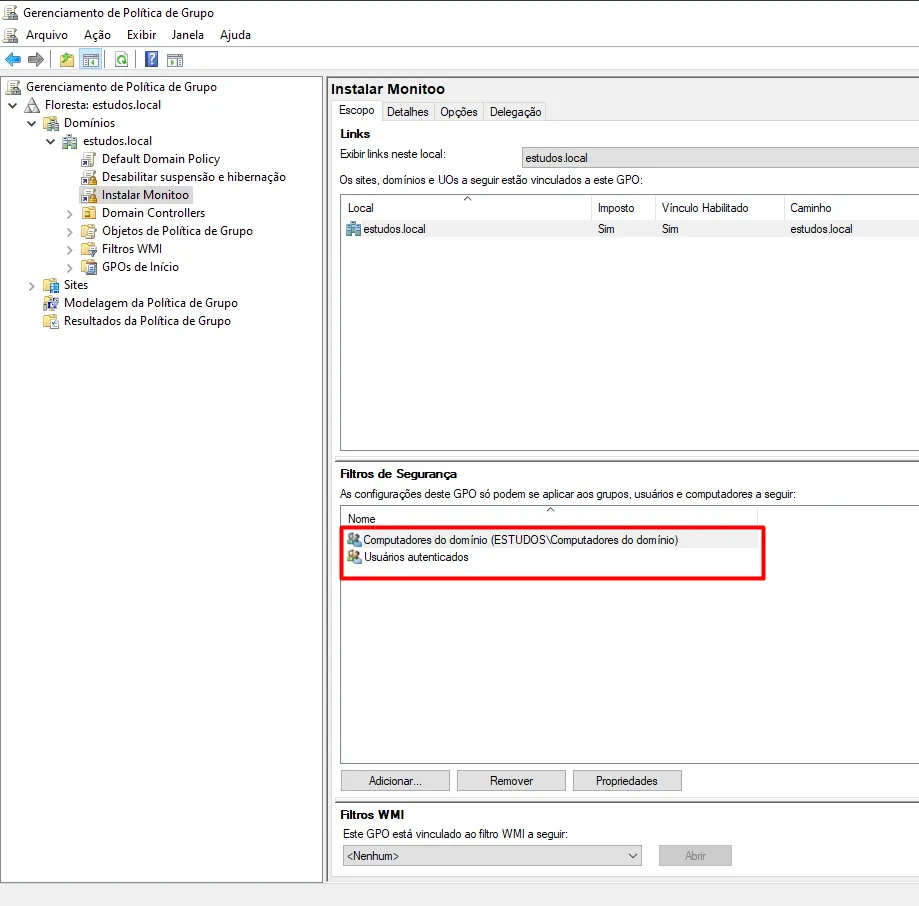 Leave the policy active for a few days until you confirm that all computers that should be monitored have installed the software and appear on the dashboard. If any computer is not applying the changes, it may be necessary to perform the manual installation as described in the previous section.
Great! Thanks for your feedback.
Tell our team what was missing: contact support on WhatsApp.
