



This history shows all overtime requests and approvals, with detailed information such as start date, end date, justification, status (approved or rejected), update date, and the manager responsible for the decision.
With it, you can fully and transparently monitor all overtime hours worked by the team.
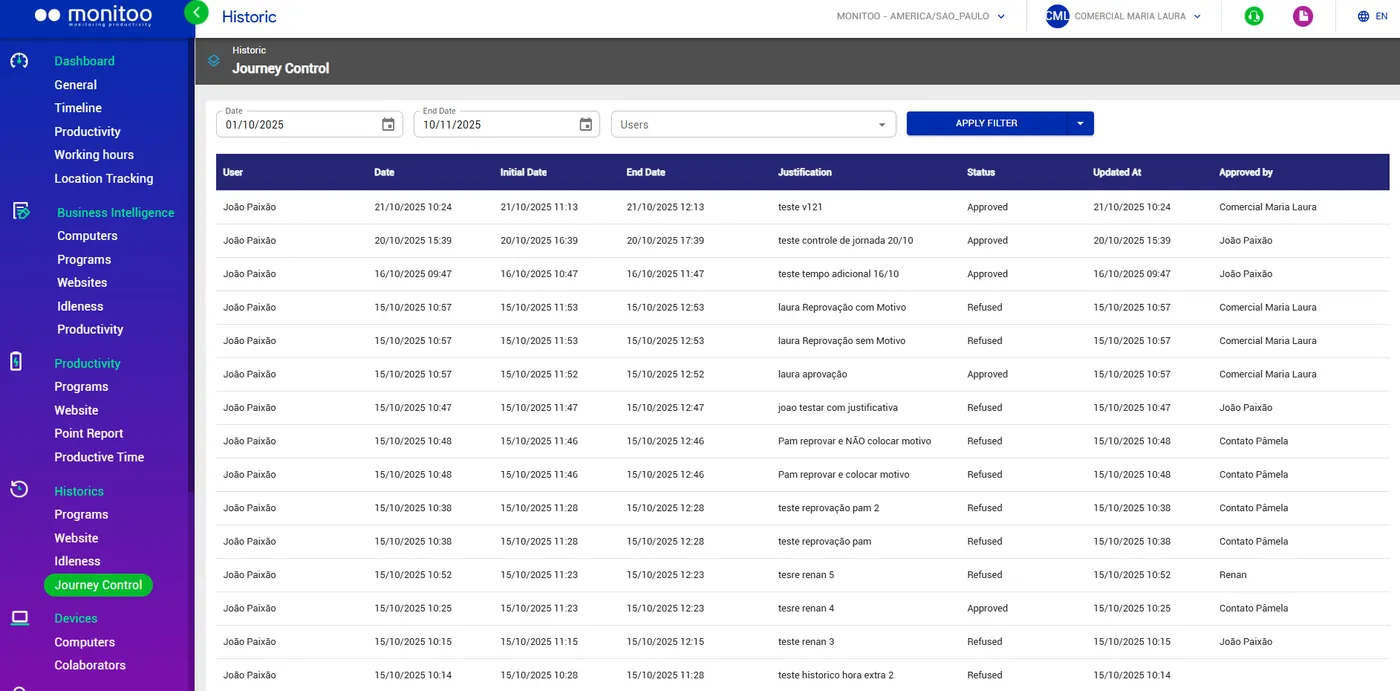
Note: The information in this report will only be displayed when an employee requests overtime from their manager. This request is what generates the record in the Workday Control History, depending on whether it is approved or rejected.
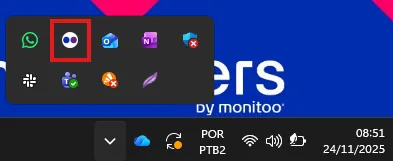
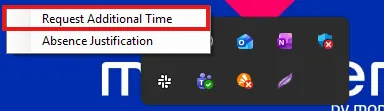
Employees can request additional hours directly from their manager. To do this, simply access the Monitoo icon on the Windows taskbar, right-click it, and select the “Request Additional Time” option. See the example below.
The employee just needs to fill in the information for the additional time request.
See how:
Great! Thanks for your feedback.
Tell our team what was missing: contact support on WhatsApp.
