



The Absence Justification feature allows employees to report the reason for their absence or inactivity on the computer during working hours. This functionality provides managers with more context and transparency, helping them understand why a specific employee was inactive and avoiding misinterpretations related to productivity.
Employees can register justifications such as: external meeting, personal emergency, early departure, client visit, among others.
This information is available for review under Notifications > Absence Justifications, making it easier to track occurrences and understand recorded breaks.
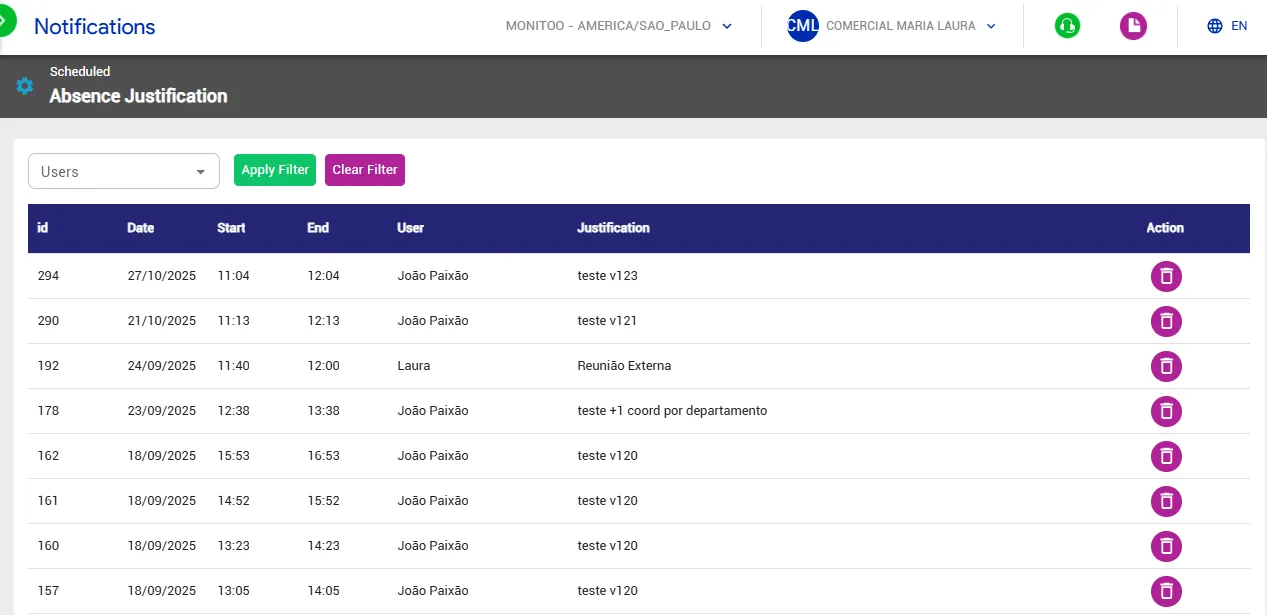
💡 Important: Since this is a new feature, justifications do not yet appear directly in the productivity dashboards.
However, they can already be viewed and analyzed in the history, serving as a foundation for future integrations and more complete analyses.
How to justify your absence to manager (step-by-step)
Find the Monitoo icon:
In the Windows taskbar (near the clock), locate the Monitoo icon and right-click on it.
When you right-click, two options will appear: Justify Absence and Request Additional Time.
Select “Justify Absence”
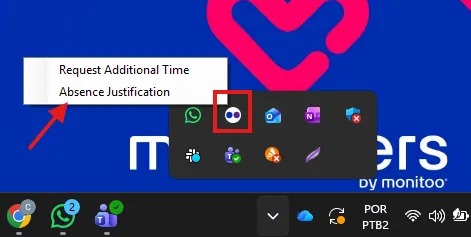
Click this option to open the justification form.
Provide the following information:
Date of the absence
Start and end time
Reason for the absence (e.g., external meeting, emergency, personal errand)
After completing all fields, click Submit to register and send the justification to your manager.
The manager will be able to view the record in the Absence Justification History for tracking and control, as shown in the example below:
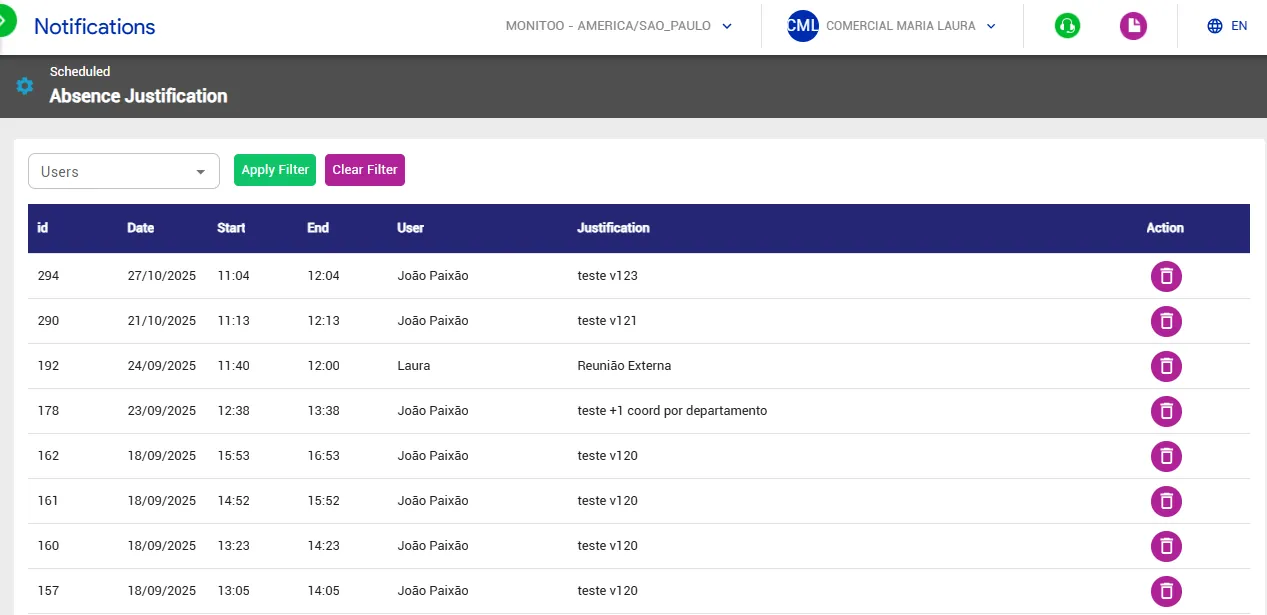
See how:
Great! Thanks for your feedback.
Tell our team what was missing: contact support on WhatsApp.
