



Approving overtime doesn’t have to require managers to be in front of their computers. With the new Overtime Approval via WhatsApp feature, Monitoo allows coordinators to receive requests directly through WhatsApp and choose whether to approve or reject them, without having to access the platform’s dashboard.
However, for the request to reach the correct coordinator, some settings need to be configured in Monitoo beforehand.
In this article, you’ll learn how the process works, which settings are required, and how to prepare your account to use overtime approval via WhatsApp.
How does overtime approval via WhatsApp work?
The process takes place in four steps:
1. The employee requests overtime
The employee submits the request from a workstation connected to Monitoo.
2. Monitoo identifies the department
The platform identifies the department associated with the employee and the workstation from which the request originated.
3. Monitoo identifies the responsible coordinator
After identifying the department, Monitoo checks which coordinator is assigned to that department.
4. The coordinator receives the request via WhatsApp
The request is sent to the coordinator’s registered WhatsApp number. The coordinator can then approve or reject the overtime request directly through the app.
The most important point: the links must be correctly configured
For the workflow to function properly, a chain of information needs to be complete:Employee → Department → Coordinator → WhatsApp NumberIn addition, the workstation used by the employee must also be linked to the corresponding department.If any of these links is missing, the request may not be sent to the correct coordinator — or may not be sent at all.
- Add the coordinators’ WhatsApp numbers
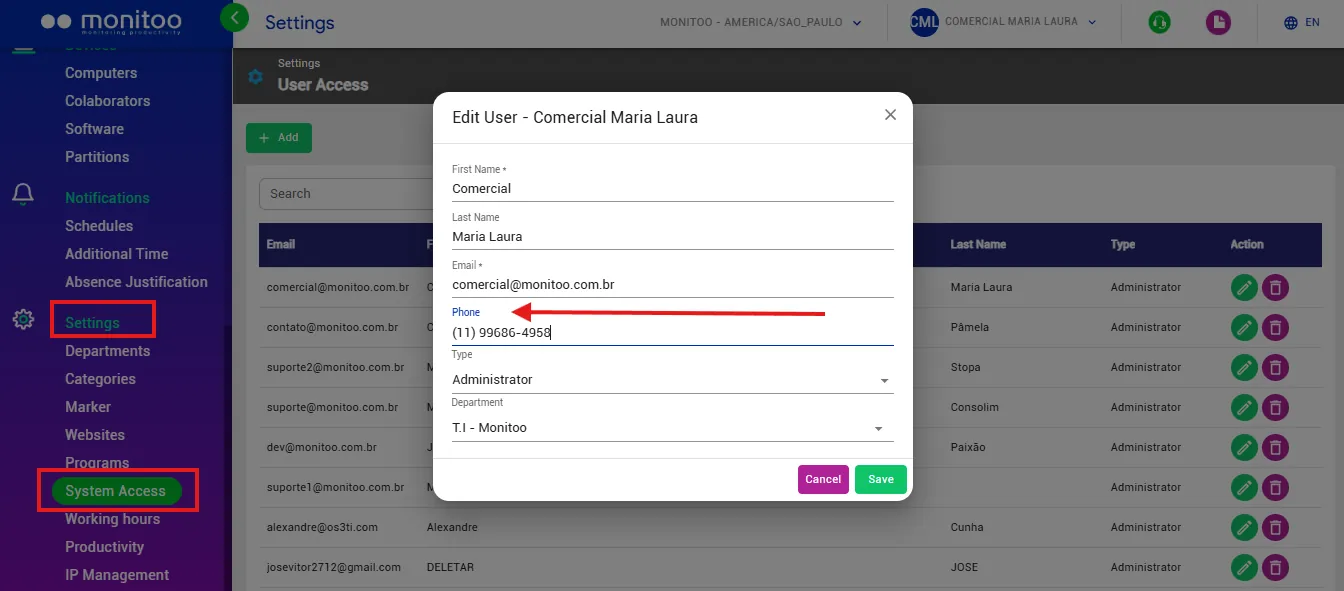
Go to: Settings > Access Locate each coordinator’s profile and add the WhatsApp number that should receive overtime approval requests. This is the number Monitoo will use to forward requests to the responsible coordinator.
- Link each coordinator to a department
Next, go to: Settings > Departments For each department, select the responsible coordinator. This is the coordinator who will receive overtime requests originating from that department.
Example:
Imagine your company has: Finance Department → Coordinator A
Sales Department → Coordinator B
IT Department → Coordinator C When a request is submitted by an employee assigned to the Finance Department, Monitoo should identify the coordinator responsible for that department.That’s why this connection needs to be configured correctly.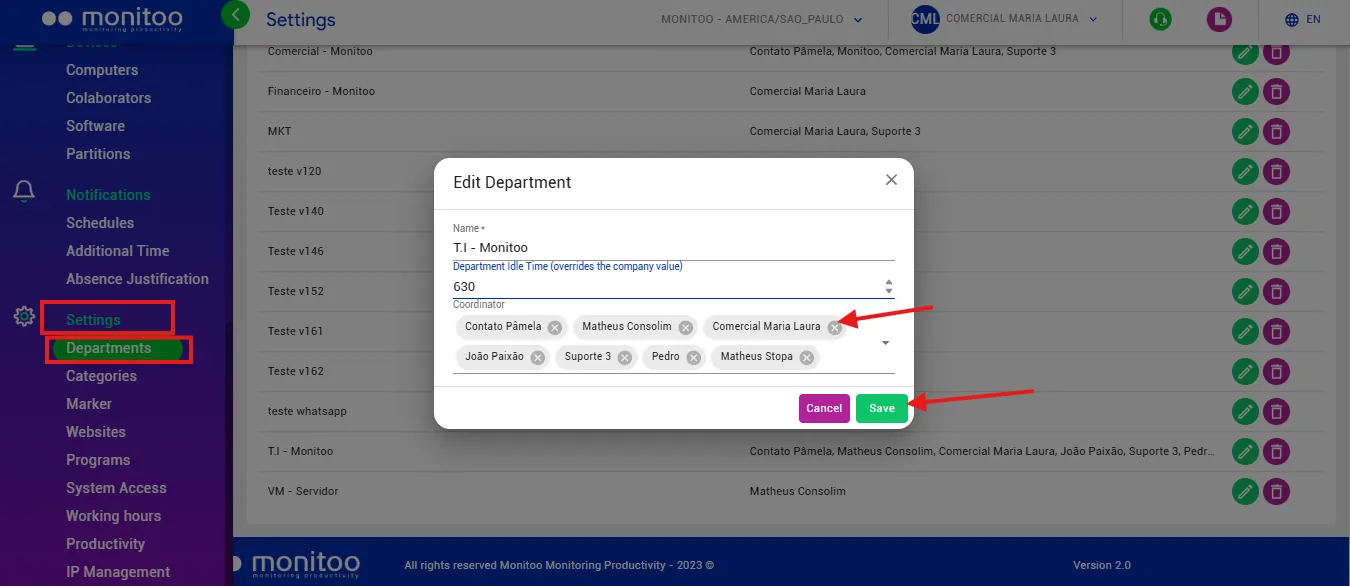
- Link computers to departments
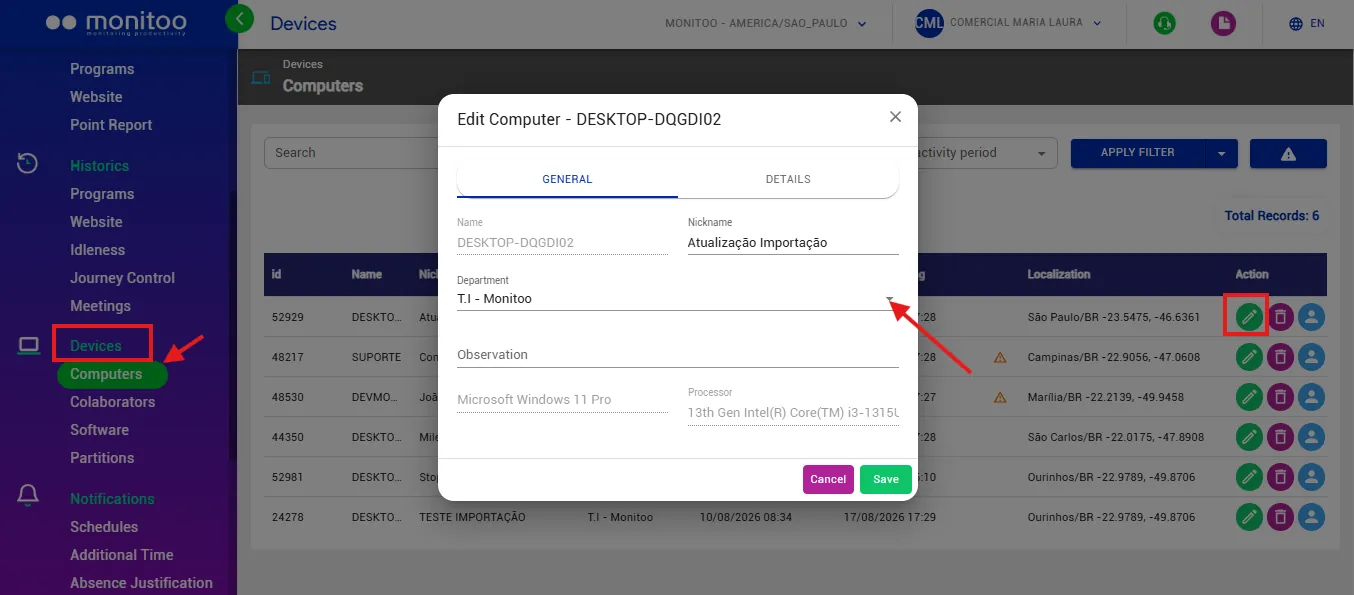
Now go to: Devices > Computers Each computer must be linked to the corresponding department. This setting is important because Monitoo uses the workstation where the request originated to correctly identify where the overtime request came from. Important: it is not enough for the employee to be assigned to the department. The computers must also be correctly associated.
- Link employees to their department
Go to: Devices > Employees Then, assign each employee to their respective department. This link helps Monitoo identify which department is associated with the employee who submitted the request.
- Enter the employees’ names
Still under: Devices > Employees Enter each employee’s full name. This information is important because the registered name will be included in the message sent to the coordinator, allowing them to identify who is requesting overtime. For this reason, we recommend checking that all employee names have been entered correctly before using the feature.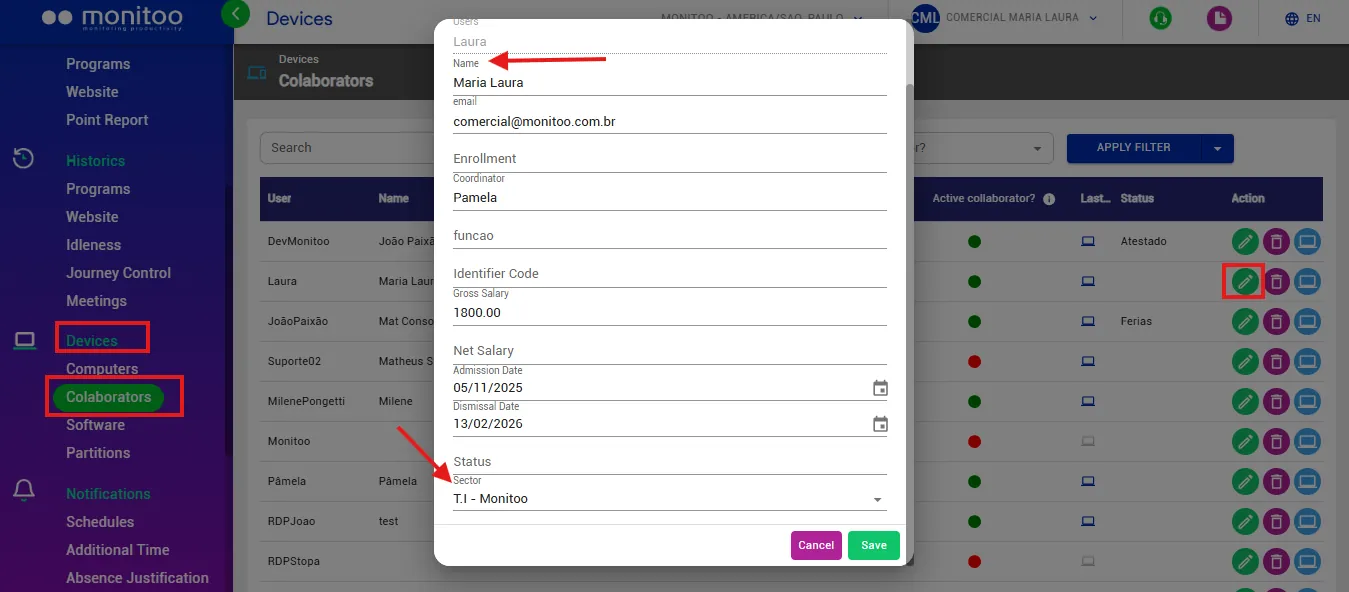
Checklist before using overtime approval via WhatsApp
Before enabling the workflow for coordinators, make sure all settings have been completed:
Coordinators’ WhatsApp numbers registered
- Coordinators linked to departments
- Computers linked to departments
- Employees linked to their departments
- Employee names filled in
These are the five items required for the feature configuration.
Why is this configuration so important?
WhatsApp approval was designed to simplify the overtime authorization process. The coordinator doesn’t need to access the Monitoo dashboard just to check a request.
When the workflow is correctly configured, they receive the request directly through WhatsApp and can make a decision there.However, this convenience depends on having the information correctly configured in Monitoo.
The logic is simple:
The employee submits the request → Monitoo identifies the origin → finds the department → identifies the coordinator → sends the request to the registered WhatsApp number.That’s why, before using the feature, it’s worth taking a few minutes to check all the required connections.# Approve overtime without accessing the dashboard
Management doesn’t always happen in front of a computer.
With overtime approval via WhatsApp, Monitoo makes the process more direct: the request reaches the coordinator through a channel they already use every day, allowing them to approve or reject the request without accessing the Monitoo dashboard. The most important thing is to make sure the structure is correctly configured before getting started.
Set up the required connections, check the checklist, and let Monitoo route each request to the right person.
Great! Thanks for your feedback.
Tell our team what was missing: contact support on WhatsApp.
